Back Up Your Wallet
Back Up Your Wallet
How to back up your wallet
How to back up your wallet
Protect your wallet two ways: an encrypted backup in iCloud or Google Drive, and a manual backup of your recovery phrase on paper.
Protect your wallet two ways: an encrypted backup in iCloud or Google Drive, and a manual backup of your recovery phrase on paper.
iCloud
Google Drive
Encrypted with your password
Manual backup
iCloud
Google Drive
Encrypted with your password
Manual backup



Watch how it works
Watch how it works
Back Up Your Wallet in under a minute
Back Up Your Wallet in under a minute
Follow each step on screen, then try it in the app.
Open Settings, then Backup
Name the backup
Set an encryption password
Step by step
Step by step
1
Open Settings, then Backup
Choose Cloud backup or Manual backup.
1
Open Settings, then Backup
Choose Cloud backup or Manual backup.
2
Name the backup
Give the wallet a name so you can recognise it when you restore.
2
Name the backup
Give the wallet a name so you can recognise it when you restore.

3
Set an encryption password
Choose a password only you know. You will need it to restore the backup.
3
Set an encryption password
Choose a password only you know. You will need it to restore the backup.

4
Save to iCloud or Google Drive
The encrypted backup is saved to your own cloud account.
4
Save to iCloud or Google Drive
The encrypted backup is saved to your own cloud account.

5
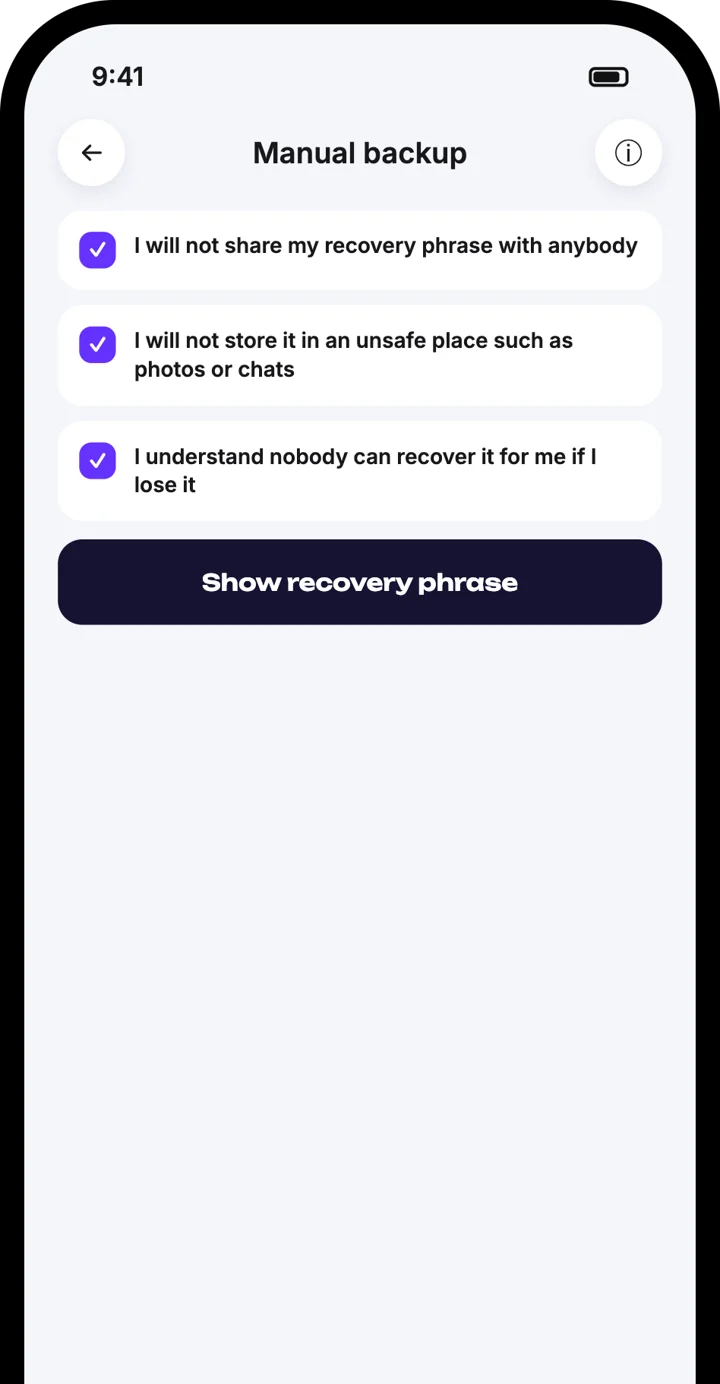
For a manual backup, accept three points
Confirm that you will not share the phrase, will not store it somewhere unsafe, and understand nobody can recover it for you.
5
For a manual backup, accept three points
Confirm that you will not share the phrase, will not store it somewhere unsafe, and understand nobody can recover it for you.

6
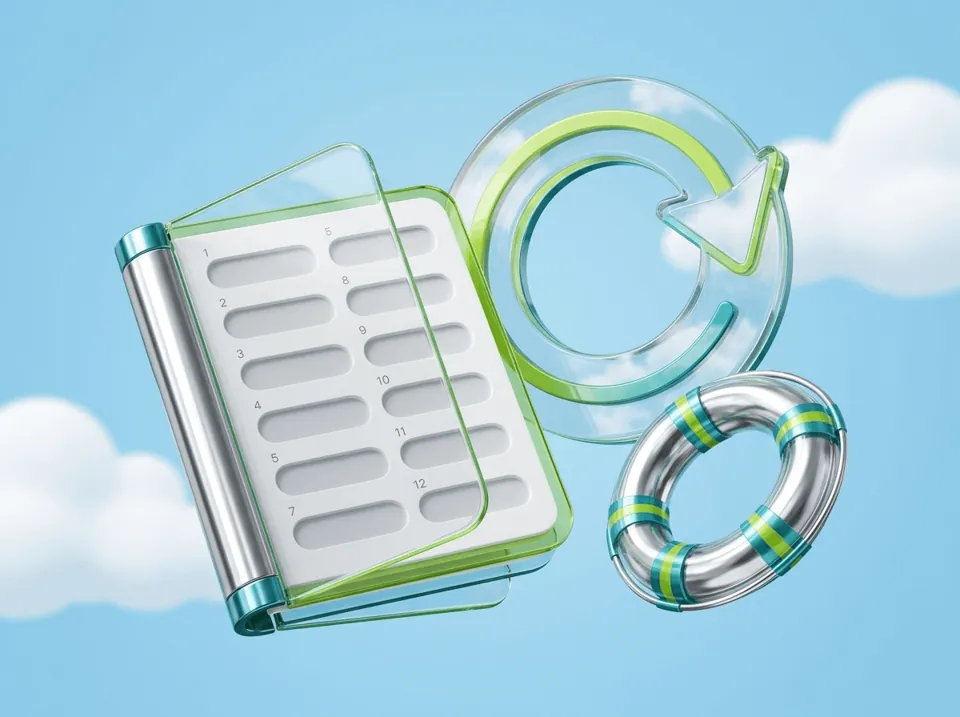
Write your phrase down
The app shows your recovery phrase. Write it on paper and keep it private.
6
Write your phrase down
The app shows your recovery phrase. Write it on paper and keep it private.
Good to know
Good to know
Remember your encryption password; it cannot be reset
Remember your encryption password; it cannot be reset
Never store your recovery phrase in photos, notes or chats
Never store your recovery phrase in photos, notes or chats
Use both backups for the best protection
Use both backups for the best protection
Atom Wallets staff will never ask for your phrase
Atom Wallets staff will never ask for your phrase
Frequently asked questions
Frequently asked questions
What is the difference between cloud and manual backup?
What happens if I forget the encryption password?
Can Atom Wallets see my backup?
Download the Atom app
Send USDT without holding TRX, swap in seconds, withdraw to your local bank and get 24/7 human support — with keys that stay on your device.




Download the Atom app
Send USDT without holding TRX, swap in seconds, withdraw to your local bank and get 24/7 human support — with keys that stay on your device.