Import a Wallet
Import a Wallet
How to import or restore a wallet
How to import or restore a wallet
Bring an existing wallet into Atom Wallets with your recovery phrase, or restore one from your encrypted iCloud or Google Drive backup.
Bring an existing wallet into Atom Wallets with your recovery phrase, or restore one from your encrypted iCloud or Google Drive backup.
Recovery phrase
iCloud backup
Google Drive backup
Same funds, new phone
Recovery phrase
iCloud backup
Google Drive backup
Same funds, new phone


Watch how it works
Watch how it works
Import a Wallet in under a minute
Import a Wallet in under a minute
Follow each step on screen, then try it in the app.
Tap I already have a wallet
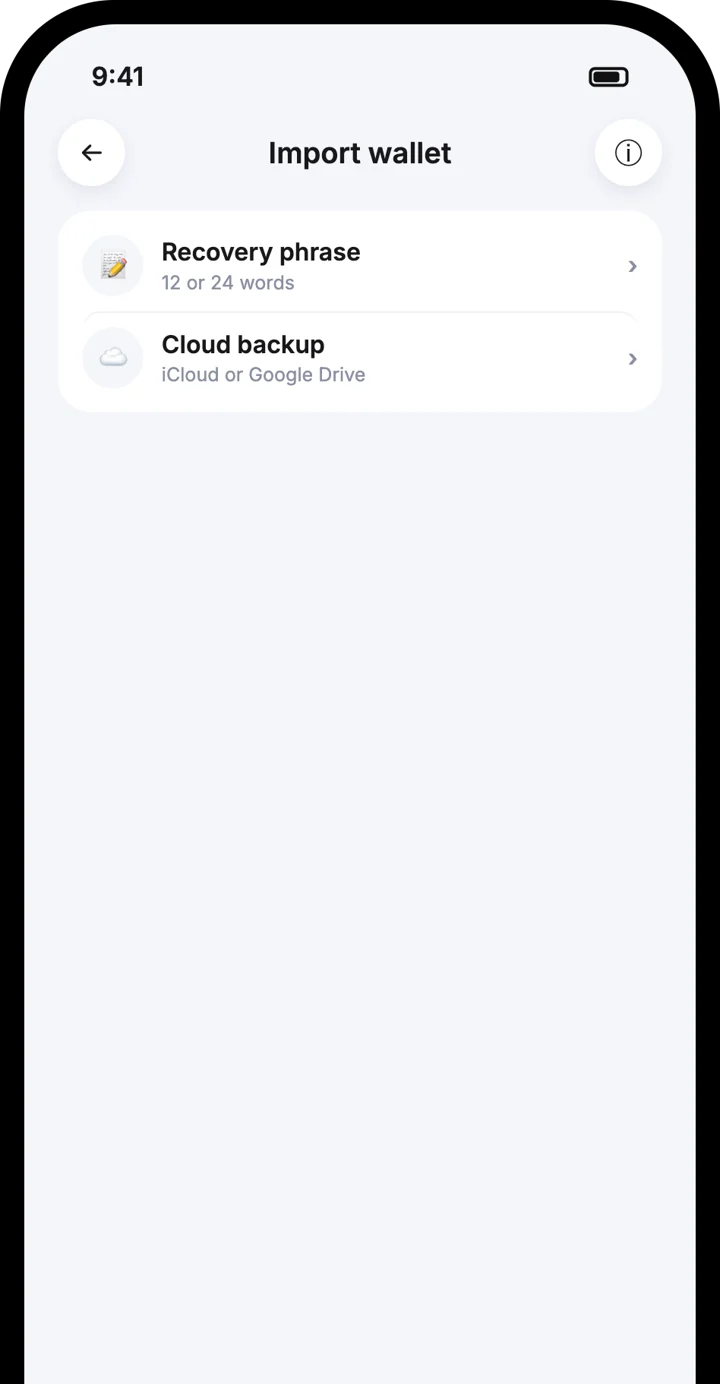
Choose how to import
Enter your recovery phrase
Step by step
Step by step

1
Tap I already have a wallet
Choose this option on the welcome screen, or add a wallet from the wallet list.
1
Tap I already have a wallet
Choose this option on the welcome screen, or add a wallet from the wallet list.

2
Choose how to import
Pick Recovery phrase or Cloud backup.
2
Choose how to import
Pick Recovery phrase or Cloud backup.
3
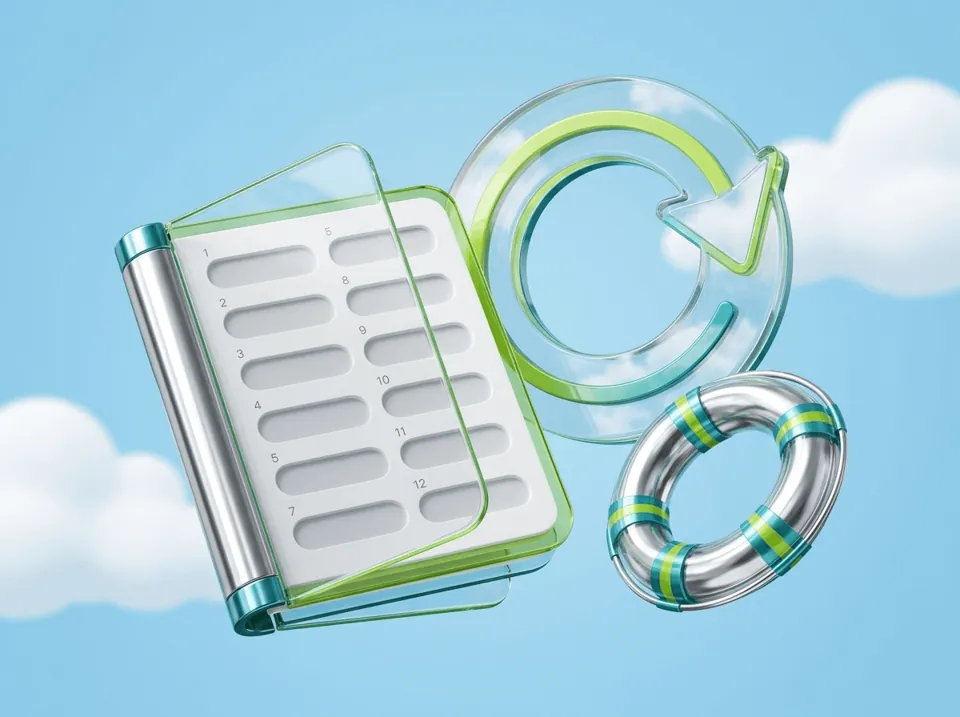
Enter your recovery phrase
Type or paste your 12 or 24 words in the right order and tap Import wallet.
3
Enter your recovery phrase
Type or paste your 12 or 24 words in the right order and tap Import wallet.
4
Or pick a cloud backup
Choose the backup by the wallet name you gave it when you saved it.
4
Or pick a cloud backup
Choose the backup by the wallet name you gave it when you saved it.

5
Enter the backup password
Type the encryption password you set when you created the backup.
5
Enter the backup password
Type the encryption password you set when you created the backup.

6
Your wallet is restored
Your coins and balances appear as before.
6
Your wallet is restored
Your coins and balances appear as before.
Good to know
Good to know
A cloud backup can only be opened with its encryption password
A cloud backup can only be opened with its encryption password
If you forget that password, nobody can decrypt the backup
If you forget that password, nobody can decrypt the backup
Wallet names help you pick the right backup
Wallet names help you pick the right backup
Importing does not move your funds; they stay on the blockchain
Importing does not move your funds; they stay on the blockchain
Frequently asked questions
Frequently asked questions
I forgot my backup password. Can Atom reset it?
Can I import a wallet from another app?
Is it safe to type my recovery phrase?
Download the Atom app
Send USDT without holding TRX, swap in seconds, withdraw to your local bank and get 24/7 human support — with keys that stay on your device.




Download the Atom app
Send USDT without holding TRX, swap in seconds, withdraw to your local bank and get 24/7 human support — with keys that stay on your device.